Presentations

Creating quick and easy videos with Adobe Voice


I saw this tweet earlier in the week, and had a look at the list. It's a good list, and the thing which really caught my eye was Adobe Voice. It allows you to create an animated video which sits somewhere between a normal video or screen-capture, and a slidedeck on autoplay. I decided to sign up and have a go, and it took only about half an hour to create this video with it.

It's a very new product, coming out in May of this year. Hopefully the video above shows you how it works and what it can do - the reason I feel like it could be so useful for libraries is that it allows you to explain fairly dry and complex information in a visual and engaging way. Some types of video, particularly stuff about databases and online things, really don't lend themselves to the 'person talking either to or off camera' school of video-creation - and screen capture can sometimes be a little dull too. I feel like this is a nice hybrid - the 'animation' element keeps things moving, and you can use screengrabs if you like too. You need neither a micrphone nor a video camera to create an effective video. You don't have to master complicated software (and even Camtasia, which I think is ace and very easy to use, feels complex compared to Voice).

Like a lot of new tools coming out these days, it makes things look very smart without the user having to know about anything except providing useful content. There are lots of different templates - here's the same video as above, using a different theme. Notice how it recolours the icons to fit the new theme.

You can also choose different layouts - I chose a side-by-side theme but there are four other options.

So have a look and see if it could be useful to your library. In summary:

(The Cons list looks really big when they're side-by-side but that's only because the cons take more explanation!)

Pros

  1. Solves an existing problem! I love tools which do this
  2. Free
  3. It's an all-in-one solution. When I create slides I have to go to iconfinder for icons, flickr for images and PPT to actually make it - Voice does all these things from one place
  4. Looks great
  5. Extremely quick to create something useful
  6. Conveys information well - it's not just pretty, it's effective in what we need it for

Cons

  1. iOS only
  2. You can't, at the time of writing, have more than one layout (or theme) per video, which would be nice
  3. In fact there's very little flexibility in how you layout each slide, once your theme and layout are selected - but this is also its strength. It's idiot proof. You'd have to go out of your way to make something bad with this tool
  4. At the moment there's no option to upload to YouTube - they have to be hosted on Adobe's own site and embedded elsewhere. That's fine, but having a video which isn't on YouTube always seems like a massive waste of an opportunity...
10 Tiny Tips for Trainers & Teachers


I do a whole load of training these days, both as part of my day-job and my freelance work, so have picked up a few small tricks along the way. There's nothing earth-shattering here - but if you run training or teach infolit classes, you may find some of these useful.  

Here's the short, visual version - then I go into each one in a bit more detail below.

Session structure

1. Start with something practical. Sometimes there is, unavoidably, a bunch of theory or conceptual stuff you have to get through. But if that's the case, if at all possible make this second on your itinerary for the day / hour - and start off with something practical. Diving in with something for people to DO wakes everyone up, and grounds the whole workshop in something tangible rather than abstract. It also makes everyone into active participants early on.

2. Allow time to recharge. A full-day workshop should have coffee-breaks etc built-in, but even a 1hr workshop can be quite overwhelming. Just building in a 3 minute gap for participants to switch-off, chat to each other, relax, will help them focus for the second half of the session and raise the energy level all round. A break 10 minutes in to a 1hr session works brilliantly - surprisingly better then, than half-way through the session or later.

3. Sum up via a Random Slide Challenge (also known as Battle Decks). I love a random slide challenge. Here's how it works:

  1. You create a short simple slide-deck which summarises the session you've just run (I normally create two decks of 5 slides each)
  2. You get participants to deliver the presentation (so in my case, two volunteers)
  3. The volunteers have never seen the slides before, which is part of the fun - so they see each slide for the first time at the same moment the audience does, and have to improvise their presentation based on that
  4. You move the slides along after 15 seconds per slide, so the whole thing takes only just over a minute per presentation

You have to give them the best possible chance of knowing which part of the session each slide is getting at! If you look at slide 41 onwards of the deck embedded here, you'll see an example of a random-slide challenge set of slides.

This works well for two reasons - firstly it is often hilarious. People in the audience shout-out if they pick up on what the slide is about before the presenters, and basically it leaves everyone on a high at the end of the session. Feedback forms at both the British Library, where I've done this on training courses, and for my infolit classes at York, often point towards this as being one of the delegates' favourite parts. The other reason it works is it's often a surpisingly great summary of the session. People say the exact kinds of things I would have said if I was summarising myself, but it has more impact because it's another voice (and, with students, it's one of their peers). Try it! The only thing is, you need a plan B for if you get no volunteers, which once happened to me. Prizes help ensure this doesn't happen...

4. Close after the questions. It's good to end any training or teaching session with a call to action - a clear message as to where participants can go from here. This can be somewhat muddied by a Q&A session (which can of course throw up anything), so build in time for questions just before the end, and leave yourself the last 5 minutes to close the session with something direct and meaningful.


Tablet as teaching assistant

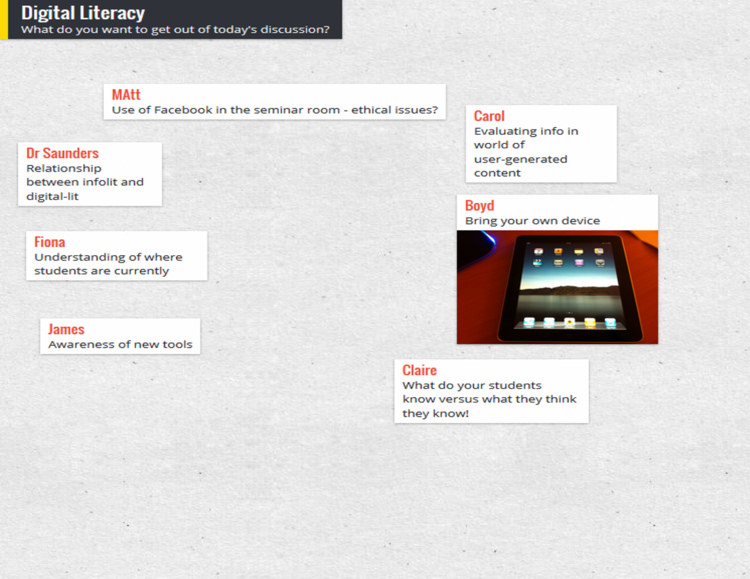
5. Use Padlet on your tablet to remember who's who. Padlet is a great tool that can be used in all sorts of ways. You create an online wall, onto which you and anyone else who has the URL can post notes. Anyone can double-click anywhere to add a sort of virtual post-it. Then they can put in their name as the title, and a note, or a URL - links to pics or videos become embedded objects on the wall. I use it to crowd-source people's ideas in training sessions - like you'd use a flipchart, except everyone can go back and look at the URL after the session, and it becomes a sort of archive for everyone to learn from oneanother.

Anyway, depending on the session I'll go round at the start and ask people to introduce themselves, and say what they want to get out of the day / hour. This is very useful in and of itself, as you can tailor things accordingly. I'll type it into Padlet on the big presenting screen as I go, so we can all refer back to it later in the day and see if we did what we said we'd do! But the really useful thing is, you can choose exactly where your notes go on the screen - so I put the notes in a way which corresponds to the physical layout in the room and where people are sitting, like in the example below. Then when I take it off the big-screen to put my slides up, I put the Padlet wall on my ipad screen - this means I've got everyone's names in the right place for easy reference so I can remember who's who!

(I feel like I didn't explain that very well. Does that make sense? The example below should clear it up.)

A Padlet wall example

A Padlet wall example


6. Skip ahead in the presentation, on your tablet. I like to have my slides or prezi open on my ipad so I can see what's coming. This is particularly handy if you're joint-teaching with somone - while they're speaking, you can recap what you're supposed to be saying next. A massive part of successful teaching and presenting, for me, is feeling in control - and this helps.


Handouts

7. Hand out the handouts. It's tempting to feel more organised by distributing the handouts, if you use them, before people arrive. Placing one by each PC or on every table. But if the group is of 20 or less, hand them round yourself; it's a great opportunity to meet each person individually and make eye-contact which, however brief, makes the communication easier and fuller for the session proper.

8. Use screengrabs to make exercises easy to find. It's amazing how often people lose their place in a handout. When you get to an excercise in the handout, put a screengrab of the slide that's on the big-screen at the time you're introducing the excercise - it makes it quick and easy for people to know exactly where they should be.


Materials

9. Use a free PBworks wiki to store materials for delegates. For all sorts of reasons, it's good to have materials online. Particularly if your session is link-heavy, store a digital copy of the hand-out on a free wiki (PBworks for example) so delegates can access them that way and just click on URLs rather than typing them in. Put the PowerPoint on there too - this means you’ll have a copy of your presentation and hand-outs even if your USB stick falls out of your pocket and your printer breaks…

10. Send the presentation round afterwards with an email. A follow-up email is useful for reinforcing key messages, and making sure people have access to the presentation materials. Don’t rely on people (students especially) tracking it down for themselves; follow up directly, ensuring they have a copy of the presentation AND your contact details. If there are issues around attachment filesizes, upload your slides to Slideshare and your hand-out to Scribd, and include links instead.


As always, I'd welcome comments - add your own tips below and help make this post more useful!

#BLAle14 Tuning out the white noise in library communication

A lot of the communication between Libraries and academic departments is just white noise, unless we tailor and personalise it. This takes a large amount of time, but the returns you get are absolutely huge - and this is the basis of my #BLAle14 keynote, a version of which is here:.

Tuning out the white noise: marketing your library services from Ned Potter

For context, here's the Twitter back-channel during the presentation - divided into sections so you can read along with the slides if you're especially keen. There's more on the conference itself below the Storify.

=======

The BLA

I became a Business Librarian this year, when I took over looking after the York Management School alongside my other departments in January. I also took over our membership of the Business Librarians Association and have been looking forward to the BLA Annual Conference, which everyone told me was excellent. And it was! I had a great time, it was great to catch up with old friends and make new ones, and I very much appreciate Nathan and the organisers inviting me to speak. As I said in my talk, I've found the BLA to be an extremely useful and helpful organisation to be a part of, so if anyone reading this looks after a Business School but isn't a member, I'd recommend signing up.

I was only able to attend two days of the conference but for me the highlights included:

  • The National Space Centre where we were lucky enough to experience a Key Stage 2 film all about The Stars and that in the Planet-arium
  • Very nice accomodation as part of the conference venue which made everything extremely easy - it's much more relaxing never having to worry about travelling from a hotel etc, so other conference organisers take note
  • A very interesting presentation about The Hive in Worcester - the UK's first joint public and academic library, from Stephanie Allen. I have to admit it never even occured to me that a public-academic library was possible, but although it sounds complicated Stephanie made a pretty convicing case for it being a great idea. It sounds like a great place - generally I have no interest in Libraries as places but I'd quite like to visit The Hive...
  • Joanne Farmer showing us Northampton's very nicely done video on employability (which she scripted)
  • Andy Priestner's very engaging talk about how UX in Libraries is very much a thing now - here's Andy's presentation on Slideshare, take a look .

I was sad to miss Aidan Smith's presentation on Occupye, used at Birbeck to show where there is seating free in the Library - this won the best short paper prize.

I thought the organisers did a great job, and it was the first conference I'd been to since LIASA so it felt great to be at that kind of event again. Thanks for having me!

Twitter tips for improvers

Here's a new set of slides I've just uploaded to my Library's slideshare account:

Tips for Twitter IMPROVERS

from

University of York Library

I think the key to good feedback in a workshop is probably 10% about the content, 10% about the delivery, and 80% about whether it is pitched at the level the participants expect and require. That's probably an exaggeration but you get my point. I've blogged on here before about how I run sessions around Web 2.0 and academia for the Researcher Development Team at York, and in the last couple I've really felt for a small number of participants who were at a stage beyond the level I was pitching at. The workshops are introductions so participants literally set up, for example, a Twitter account from scratch - so anyone who is already past that point but wants to know about content and tone, is doing far too much thumb-twiddling for my liking, until later in the session.

With all that in mind, as of next academic year we're reworking the workshops, and in each case I'll run one 'A beginner's guide to' type session and one 'Improvers' type session, so people can get exactly what they need out of the workshops. We didn't have time to arrange that for this terms' workshops, so I produced the slides above to send on to participants of my introductory workshop, for those who wanted to go further. In January when the next set of workshops run (I don't do any in the Autumn term, because AUTUMN TERM), I'll flesh this out into a proper interactive 1.5 hour session.

Have I left anything important out? One of the things I love about Slideshare is that you can update and reupload slides over the same URL, so you don't lose that continuity (and your statistics). So if there's anything you'd add to this, let me know in a comment, and I can eventually make a new and improved version to put online in place of this one.

My advice to Tweeters: ignore advice to Tweeters...

I think guides for tweeting well are most important for organisations - it's key that companies, businesses and public bodies get this stuff right, and they often don't. For individuals though, I'm increasingly of the mind that unless you specifically want Twitter to DO something for you which it currently isn't doing (and the slides above are aimed at researchers who specifically want to grow their network in order to find more value in it), it's not worth reading 'how to tweet' guides (of the kind I used to write myself) and trying to change how you approach it. There's plenty of good advice to be had in these, but it's not necessary to follow any of it - apart from not being unpleasant or otherwise making people bad about themselves. If you want to tweet about your lunch every day, why should you stop doing that just to retain followers? I think it's better to be yourself and have a group of followers who are prepared to put with that, for better or for worse...

Number of followers isn't an end in itself. A smaller group of engaged followers who want to interact with YOU is far better than a huge group for whom you have to put on any kind of show. So while when writing in print it's important to adopt a style appropriate for the medium, I consider Twitter to be much closer to spoken communication. As long as you're prepared to deal with the consequences, why not just be yourself?

Can you use Twitter for Academic teaching? Yes, here are some examples

I have read, and contributed to, an awful lot of writing online about Twitter in HE. Social networks in general and Twitter in particular are increasingly accepted as a valuable part of the academic world. If you want to know about how to use Twitter for communication, for building reputation, for research, then Google will provide you with endless hours of reading. However, using Twitter in teaching seems to be far more tricky and ambiguous. There are a lot more people asking 'Can we use Twitter in academic teaching, and if so, how?' then answering that question. Interestingly, there's a lot more info out there in using it in the school classroom than on using it in the University seminar room, lab, or lecture theatre.

With that in mind, and to make the most of a real edtech zietgeist happening at the University of York at the moment, I put together a 1.5 hour workshop for academics, as part of a series I'm doing for the Learning & Teaching Forum. I really enjoyed putting this together because I learnt a lot, and spoke to a lot of academics doing really interesting things with tweets.

The biggest issue in this area seems to be that you can't make students sign up for the platform, so how do you make sure no one is excluded if you're providing key info via Twitter (without you having to duplicate everything)? The first answer is embedding a Twitter stream in the VLE - there is a full guide on how to do that (with BlackBoard) in the handout which accompanied the session (embedded below). The second answer is projecting a hashtag onto the walls during teaching. Chemistry at York is, for some reason, always at the front of the curve with social media, and one of the things Simon Lancaster does is have a back-channel running on big screens during lab-sessions, using Tweetbeam, so that students who don't wish to sign up for Twitter can still get the benefit of seeing other students' tweets (and also pictures shared by Simon). I really liked this idea - I liked the ceding of control, the high risk of it, and I like the fact that the students don't abuse the trust, and take the opportunity instead to contribute enthusiastically and productively.

Anyhow, here are the slides from the workshop - I hope if you're reading this you find them useful. If you're an academic and want to chip in via the comments with how you utilise Twitter, that would be great; if you're an information professional and you also run these sorts of workshops, I'd love to hear from you too.


Using Twitter in Academic Teaching by University of York Information