Tech Guide

A guide to networking for new librarians

I was really pleased to take part in the Annual programme for the ALA's New Members Round Table, last week - it was a webinar and the whole thing was recorded. You can watch and listen to it online here (it opens in Adobe Connect) - I talk about the 'What' of networking (starting around the five-and-half-minute mark) and finish things off with the 'Why' (around 42 minutes) - in between the How, Who, Where and When are covered by Loida Garcia-Febo, Courtney Young, JP Pocaro and Pat Hawthorne respectively. A screengrab from the webinar
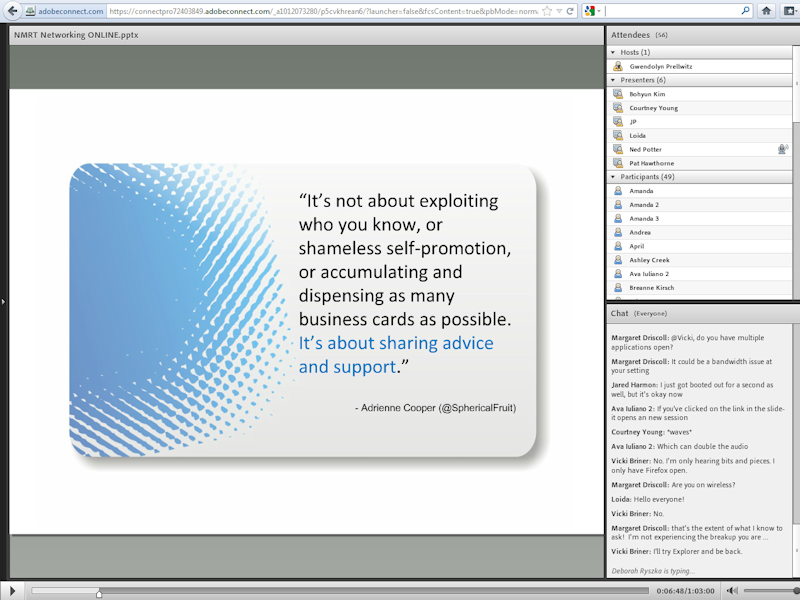
Huge thanks to Bohyun Kim for inviting me to present - it was nice to take advantage of the technology to do something with the ALA without having to be at the conference in the US, and I enjoyed the webinar a lot. Appropriately, I made a few connections at the event and found it to be good networking experience.

Being forced to define networking for the purposes of the talk, and take a step back and look at what it means and involves, was a revealing experience, in particular because it made me realise how much of what I think about having a brand can apply to networking. In particular:

  • Networking, like developing a brand, is a means to an end and that end is opportunities to do interesting or fun things - you meet and connect with people who expand your horizons, expose you to new ideas, and collaborate with you to do cool stuff. (Unlike brand networking is also an end in itself - it's just fun to talk to nice people.)
  • If developing a brand is a natural byproduct of pursuing your professional interests in as networked a way as possible, then developing a network is a natural byproduct of the same thing, really.
  • Related to the above: in my experience it's easiest to develop a network by positioning yourself as part of the dialogue in librarianship and contributing, than for example saying 'I'm going to make X connections' and actually setting out specifically to develop a network or market yourself .

I find my network (essentially: you lot) to be THE single most useful thing in my professional life, and in the webinar I reflected on a clear delineation (marked by the 2009 New Professionals Conference) of pre-networked-Ned and networked-Ned - all the interesting things have happened in the latter period. I could neither have written my book nor got my current job without my network. So a: thank you! And b: if you're wondering about taking the plunge and networking more, it's worth it. Becoming part of something bigger is a great thing.

- thewikiman

6 useful things Prezi can do (which even experienced users miss)

I keep discovering new things about the presentation software Prezi. Asking around, it seems lots of other users didn't know about some or all of these either, so with that in mind I thought I'd draw your attention to 6 useful things. Got any more? Leave them in a comment...

1. Upgrade to the educational licence for free if you are a student or work for a University

All you need to do is go to Upgrade on the Prezi site, and stick in your university email address (.edu or .ac.uk etc). As a result of the upgrade you get more storage space (quite useful), the ability to substitute the Prezi logo for one of your own (could be useful for institutional branding of Prezis) and the ability to keep Prezis private (very useful, particularly from a teaching point of view - you don't want students to see the presentation until it's ready!). Well worth doing, I think.

The upgrade box is at the bottom of the screen

2. Hold down shift when drawing frames and hidden frames to maintain a perfect 4:3 aspect ratio (trust me, this one is REALLY useful!)

This is completely brilliant. I use LOADS of hidden frames in my Prezis, to ensure the viewer is shown exactly what I want them to see in the order I want them to see it. However, when you draw a frame or hidden frame which isn't the (usually 4:3) aspect ratio you're using to present - in other words, when the frame isn't the same shape & proportions as a monitor or projector screen - then other stuff can creep into the frame and slightly ruin all the careful planning.

By pressing shift before drawing a frame, it keeps a perfect 4:3 aspect ratio as you draw it - moving the mouse simply increases or decreases the size, but the shape stays the same. You can in effect create several screens, and populate the screens with content knowing that everything will fit perfectly when you're presenting or when people are viewing the presentation online. I used this technique loads in the new technologies Prezi and the branding Prezi I recently created. The result is: better looking, more cohesive prezis.

An example of hidden frames using 4:3 aspect ratio

3. Save your Prezi to a USB stick

I realise most of you will know this one, but I wrongly assumed it was an 'upgraded licence only' option for ages, so thought I'd flag it up here. It's very much worth doing because a: you aren't relying on an internet connection, b: if you've got embedded YouTube videos (and there is an internet connection) they'll still play and c: it enables you to use a clicker to move the presentation along without having to stand by the PC and use a mouse or the keyboard - you can't use a clicker with a web-based Prezi, for some reason.

When you click 'download' you get a ZIP file - you can extract the ZIP to a USB stick but make sure you take all the files and folders with you, as you need all of them to play the Prezi back. You can't edit it on the stick, so make sure it's your final version before you download it.

Screengrab showing the download button

4. Print your Prezi in an actually quite useful way

Pressing 'print' in edit mode saves the Prezi to a PDF - each page of the PDF is a 'screen' on Prezi (i.e each number on your path becomes a printed screenshot). Again, I'd not previously realised this worked so neatly. It means that, for example, for teaching, you could set a simplified path on your presentation, press print to produce a handout of a reasonable length, then put the path back to the full route again. Also, it's the ultimate back-up - if you can't present your Prezi for some disastrous reason, you can present with the PDF instead.

Screengrab showing the print-preview

5. Import a PowerPoint presentation directly into Prezi

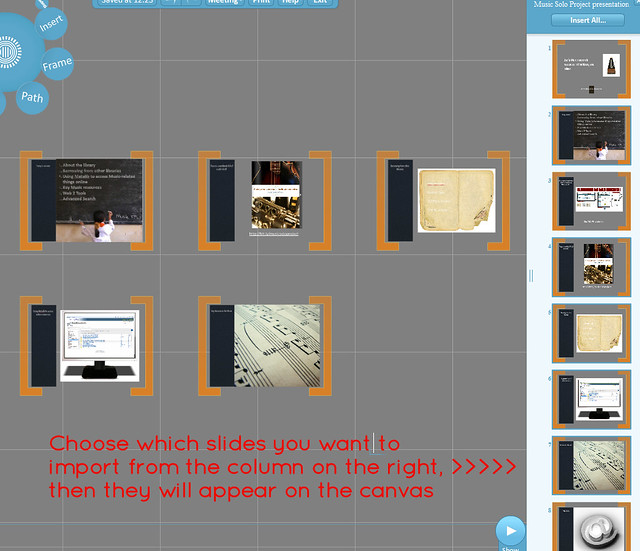
The easiest way to get started with Prezi is probably to import a PPT and mess around with that. If you have slides you wish to convert, just click Insert > PowerPoint and import them onto the canvas - you can choose all or some of the slides, and have Prezi automatically add a path between them if you like. You can edit the text within Prezi - it's not like importing a PDF where you're stuck with what you have.

I'm not sure there's much point in just pulling in some slides and leaving it at that, but it's a nice jumping-off point to creating something more interesting - and it's a lot quicker than typing all the info from your slides in by hand. Quick tip: the more straightforward the slide, the better this works - it struggles with more complicated stuff.

Screengrab showing import slides

6. Choose from more than just 3 colours for your fonts

It used to be the case that you chose your theme, then stuck with the three colours you were given. Now you can change any passage of text to one of a huge number of colour choices - type it first, then the options appear above it on the right.

Picture showing colour highlighting

I hope some or all of these are useful.

A newly updated Ultimate Prezi Guide is here (refreshed in May 2013), and all sorts of related materials are available here.

- thewikiman

You already have a brand! Here are 5 ways to influence it... (#CILIPNPD12)

Yesterday I presented at possibly my favourite library event of all, CILIP's New Professionals Day. I love it because it gets so many people fired up and energised, and there's so much enthusiasm about the place. I was honoured to do the first talk of the day, and my presentation was about two things: firstly the fact that you don't have to be a super-librarian to get on in your career, and secondly that we all have a personal brand so if you do want to try and build that brand, there are steps you can take to do so positively.

I wanted to dispel some myths (particularly that we all have to aspire to be like the really well-known, uberlibrarians), following on from this blog post about whether or not we really have to market ourselves at all, which explains a lot of the stuff I talked about yesterday.

Here's the presentation (works best on full-screen):

5 easy ways to create fabulous slides

Presentations, eh? We pretty much all have to do them now - and we certainly all have to watch them at some time or other. So let's all make nice ones, and collectively save ourselves from death by Powerpoint.

Creating decent slide-decks is actually very straightforward. The deck above details five methods, in order of easyness:

  • The simple colours method (easiest)
  • The one background, many colours method
  • The two-tone-texture method
  • The found-flickr method
  • The augmented white slide method (trickiest) .

On a closely related note, here's a quick reminder not to break the basic rules of presenting, which Slideshare featured on their homepage a while back:

Other guides (including Prezi presentation software) available here: thewikiman.org/tech.

Good luck creating fabulous slides!

- thewikiman


How to build 5 libraries in 2 weeks

Last week I gave a 20:20, or Pecha Kucha, presentation. Basically this means 20 slides, set to run automatically for 20 seconds each - it makes for quick and punchy presentations with none of the filler that can make PowerPoint sessions drag on. We use them at York to keep each other up to date within the Information Directorate (our converged Library and IT service) with what's going on and what we're interested in. I really recommend this, it's a great way to bring people together across an organisation and communicate ideas. Anyway, normally I'd choose something more relevant to my work but this time I decided to do something different, and present on the Buy India a Library Project, which ran at the start of this year. Here are the slides:

View more presentations from Ned Potter
It was really fun to revisit this, and reflect on what an extraordinary thing it was that Buyalib was able to crowd-source nearly $4000 from librarians, in two weeks, for a charitable cause! Everyone who donated or spread the word - you are amazing. We have literally created something out of nothing.
I had a letter from GoodGifts the other day, saying that work had started on building the library in India and would likely be completed by April next year. Justin, Jan, Andromeda and I were invited to the opening but, frankly, if we had enough cash knocking around to afford those air-fares, we wouldn't have needed to crowd-source the cash to begin with. :)
For people who think Twitter is 'just people talking about what they had for lunch', this kind of project - which would have been all but impossible to achieve pre-Twitter, certainly in that amount of time - is the ultimate riposte, I think. If you're new to this story, you can catch up via the Buyalib blog.
Cheers!
- thewikiman
p.s Did I mention that 5 libraries now exist or are being created in impoverished areas with no other access to books - libraries which otherwise wouldn't have existed? That's absolutely amazing!