Tech Guide

How to post to Instagram from a PC

Posting to Insta is officially mobile-only, and the desktop version doesn’t have the button to add media. But it’s relatively straightforward to trick your desktop into displaying a mobile view, and then you can post from it directly.

There’s a million articles online about using Instagram from a PC or laptop but they’re all ludicrously complicated or involve using third-party apps etc - none of that is necessary, if you follow the steps below. (The screenshots are from Google Chrome but you can do more or less the exact same thing in Firefox.)

1) Go to instagram.com on your PC, and log in

2) Right click anywhere. You’ll see Inspect listed at the bottom of the menu which appears: click that

Log-in to Insta, right-click, and choose Inspect from the menu

Log-in to Insta, right-click, and choose Inspect from the menu

3) You’ll see the html on the right of the screen. At the top of that there’s an icon showing a phone and a tablet - if you hover over it you’ll see it’s called Toggle device toolbar. Click this: the rest of the screen will then display the website on a mobile view. At the top of the screen you’ll see a drop-down menu which allows you to choose what kind of device you want to simulate, so you can choose an iphone or whatever else you want

Choose a mobile device: Chrome will show Instagram as it would appear on that device

Choose a mobile device: Chrome will show Instagram as it would appear on that device

4) Now for the absolutely key bit (thank you to my colleagues Hannah and Antonio for getting me up to speed on this part!): refresh the browser using F5 or the Reload page button. You’ll then see the crucial button, missing until now, that you get on your phone: the + in a square which represents ‘Add picture / video’. Pressing it on your PC will open up the usual file explorer, allowing you to navigate to the media of your choice.

Refreshing the website brings up the Add Media button, highlighted in yellow here

Refreshing the website brings up the Add Media button, highlighted in yellow here

5) Choose a Filter if you like, press Next, add your caption, location, tagged people (and in Advanced Settings you’ll find the option to add Alt Tags too) and click Share to post to Instagram.

Why would you want to use Instagram on your desktop in the first place?

This technique is useful for three main reasons in my experience.

The first and most important thing is, Instagram is such a key social media tool for organisations, but not everyone wants organisational accounts on their personal phone. I work with people who’d rather not mix those two worlds and I completely understand that - but I want them to be able to contribute to our Instagram account without having to compromise their principles! This method means everyone can get involved.

The second reason is, if you already have photography on your hard-drive or network drive, it saves having to get that onto your mobile device’s camera roll.

The third thing is, you can write the post at any time of day and it will stay there waiting for you to post it at the time of your choosing (unless, obviously, you close the window / tab / browser). So if you have 5 minutes to compose the perfect Insta post first thing, but don’t want it to go live till the peak time to post later in the day, you can do the work at 9am and actually post it at 3pm.

Okay that’s it. Happy posting!

Using screencapture software to make next-level PowerPoint presentations

I normally record talks I give at conferences, using my phone in my jacket pocket. I have a strict 'no critiquing myself during the talk itself' rule, so the recording allows me to listen back afterwards and pick up on things that I'd want to do differently next time, or things that worked well etc.

In the past I've also put a video up on YouTube, using Camtasia to record me moving the slides along with the audio of my talk at the LIASA conference in Cape Town. I don't think this worked that well because there was simply too many long periods where nothing changed on the screen - in real life that was fine because the audience looks at the speaker, but in a video - a visual medium after all - it just feels a little inert and uninteresting.

So for a recent talk I decided to try and make a version of the slides that would work as a proper video. I spoke at the CILIP PPRG Conference in January (more on that in a previous post) about our UoYTips marketing campaign - York won a Bronze Marketing Award which I was picking up at the event. I delivered the slides and recorded the talk in the usual way, but then set about creating a new version of the slides that had much more going on visually. The actual slides are here, if you're interested, and here is how they evolved for the video I came up with:

Now I've done this, I'm wondering why I can't just do more visually exciting slides anyway? This doesn't have to be just for YouTube. I've always wanted to use video in presentations more, and it's surprisingly easy to do as it turns out.

The tools

To make the video above I used three bits of software. PowerPoint, obviously, for the slides. Audacity to edit and play the audio (this is free). And Screencastomatic for both the screen-capture videos within the slides, and the overall screen-capture of slides plus audio you can view above. Screencastomatic is a great tool, which I found much easier to use than Camtasia. It's quick and intuitive. It can be used for free, but in order to record videos of more than 15 minutes, and record PC audio, you need the pro subscription - this costs 12 quid year which is pretty great value, I reckon.

Here's what the Screencast-o-matic interface looks like:

too.PNG

It's very easy to redraw the box around the exact part of the screen (or all the screen) that you want to record. You can pause and restart. You can also record PC audio as you go, or narrate into a mic. As you can see it gives you the option of recording from webcam at the same time if you wish, which happens in a smallish box at the top right of the screen.

It's really easy to use.

The techniques

In the video above there are a number of techniques (perhaps that's too grand a word!) employed to suit different types of information.

  • Actual video recorded on my phone. (This happens about 25 seconds in.) I recorded a video in the usual way, emailed it to myself, and went to Insert Video in PPT. You can make it full screen, or you can overlay the branding / visual identity from your PPT over the top. I think this is crucial to how easy this is to do - the video can effectively be the background of the slide, just like an image can. You then overlay it with text, shapes, images etc as normal.

  • Screencasting Google Earth. I really like this one, which happens here. How to have something dynamic on screen while I talk about the University of York? Type it into Google Earth then press record on the screencasting software, and return on Google Earth. It zooms all the way in and then, delightfully, spins round the building you've chosen for a bit. I'm going to use this in library induction sessions in the future, for sure.

  • Using gifs. There's a couple of examples of this, but here's the most interesting one. It starts off as a regular full-screen image, and then I used animation to first of all drop the text on top of the image at the appropriate time, and secondly to trigger the gif video beginning (having downloaded the gif from a gif site, and saved it as a video).

  • Regular PowerPoint animations and transitions. There's a few moments where things are added onto the screen one-by-one as I mention them, and there's this very long fade transition between two slides

  • Videos of websites instead of screengrabs of websites. There's an example here, and another example here. In the talk I just showed a screenshot of the thing I was talking about, but here it's a 15 second video of the site being used, which is much more interesting. I'm definitely going to reuse this technique.

The drawbacks

Really the only two drawbacks are that it takes time, and it takes space.

Of course, recording a clip on a website in use takes more time than just a screenshot, but it becomes surprisingly quick. Perhaps a minute to set-up, record and save / export 20 seconds' worth of screen-capture, so not too bad at all.

In terms of space - the videos are MP4 files and pleasingly small. Most brief captures were under 1 meg. The 22 second-long Google Earth zoom right at the start of the video was 12 meg. The overall final file - a 20 minute video capturing the whole thing, was 99MB. Video files are so huge, I think this is pretty reasonable.

So, I'd recommend giving this a try. And if you create a presentation with video and upload it anywhere (or you've already done this in the past) leave me a link in the comments...

Coming up: online marketing workshops for New Zealand and Australia libraries!

I'm absolutely thrilled to say I'm working with PiCS again, this time to deliver online training. With PiCS I've previously run marketing training in Sydney, Melbourne and Brisbane, and an emerging technologies in Auckland, and they always go all out to put on the best possible day.

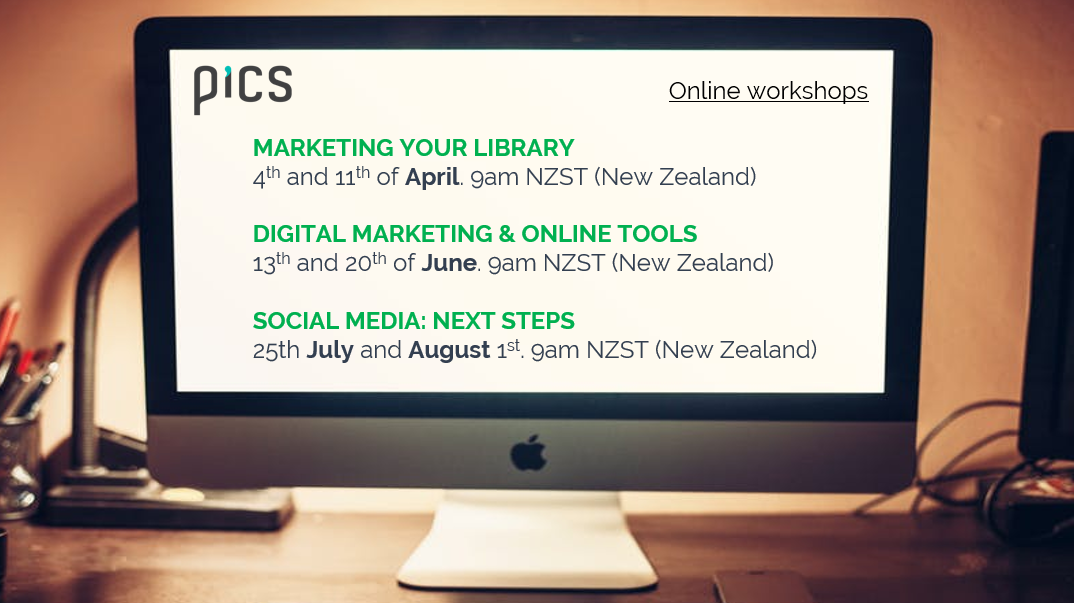
If all goes to plan I'll be back in Oz in 2018 to deliver some face-to-face workshops on Presentation Skills (aimed specifically at information professionals), and in the meantime we're collaborating on three workshops online: Marketing your library (running across March, April and May), Digital Marketing and Online Tools (running in June) and Social Media: Next Steps (running across July and August).

It's all quite complicated because of running them at different times for different time-zones. Each course takes place in two sessions - 2 hours one week, then 2 hours the next week at the same time. There are New Zealand versions and Australia versions... Here are the details:

For me and Viv at PiCS trying to work out timings here has been brain-meltingly complicated, not least because in the case of the New Zealand timings I'm actually delivering them at 10pm the previous day, UK-time, for them to run at 9am Auckland time! The Australian ones are slightly more straightforward, with the training happening at 6am for me...

Anyhow, I'm really looking forward to this. All the courses are tailored for the online environment and I promise we won't be in the standard 'death by webinar' mode here: these are interactive, participatory, and hands-on workshops: you'll be DOING as well as watching and listening. It's going to be ace.

For info on the content and booking etc see the individual workshop pages linked above - for the rest of this post I'm going to use a Q&A format to explain some more about how these sessions will work.

How long are the workshops?

Each session is 2 hours long - any more than that is too much screen time in my experience. There'll be a 5 minute break in the middle, and pratical exercises throughout so it's by no means listening to me for 2 hours. Then there's a week off and a second session of 2 hours, and in between there might be some activities to explore and report back on. So in total each set of workshops will take 4 hours.

Will I be able to ask questions and interact with fellow attendees?

Yes absolutely. I use two screens, one of which has the discussion window open the whole time - so I can pick up questions as they come in rather than needing a section of the training where a moderator coordinates the questions. You can also talk to each other in the discussion. And you can message me in the session if you want to ask a non-public question.

Could I attend all three courses or is there overlap in content?

All three courses are about communciation so certain themes run through each, but none of the fundamental content is the same and none of the tasks and exercises are the same.

I came to your LIANZA marketing workshop on marketing - should I still sign up for the online version?

The workshop at LIANZA was a super-condensed version of the workshop, crammed into 1.5 hours and needing to work for 130 people! Places on these new sessions are limited to small numbers, and over more than twice the time, so the marketing one does contain a lot of material that wasn't included at LIANZA. I've also added a few new sections to the training since late 2015. However there is some overlap! So you'll hear a few things you heard previously. But I'd say there's enough new and additonal content to make it worthwhile.

I came to your Digital Marketing & Online Training full day in Auckland - should I still sign up to the online version?

I'd say 'no'. Although there's new content since the Auckland workshop, a lot of it will cover similar topics so you'll find yourself repeating exercises. Of course you're more than welcome to attend anyway! But I'd recommend attending one or both of the other two workshops (Marketing your library service, and Social Media: Next Steps) instead.

I came to your Marketing Your Library full day in Brisbane / Sydney / Melbourne - should I still sign up for the online version?

The workshop does have some new sections in since the sessions I ran in Australia but a lot of the content is similar, so I'd recommend signing up for one of the other two online workshops instead.

Can I see just the workshops listed for my time zone?

Yes you can!

Or there's more details including links to booking below:

I have more questions!

No problem, either leave them in a comment, or send me an email.

I look forward to seeing some of you online!

Using PowerPoint as a design tool

If you're a graphic designer you probably use a professional tool like Adobe InDesign or Photoshop to make leaflets, posters, infographics and other digital images. If, like me, you're not, and those tools are beyond both your budget and capacity to learn complicated programmes you're not going to use that often, you need an alternative.

I've written on here before about Canva, which is excellent for more than just presentations, and I like Phoster in the iOS app store for designing digital posters. But an under-rated tool for Design is PowerPoint. The main reasons are it's a lot more flexible than it's often given credit for, and it's incredibly easy to layer content (to put text over images, etc) - something which is maddeningly difficult to do in Word, for example.

So here are the key aspects to using PowerPoint for design.

1) You can make a slide ANY size, and save it as a JPG or PNG file

Go to Design, Slide Size then Custom Slide Size to get to this menu

Go to Design, Slide Size then Custom Slide Size to get to this menu

PowerPoint defaults to a 4:3 or 16:9 slide - but you can edit the slide to be any shape, size and proportions. Open a new presentation and go to Design then Slide Size and choose Custom Slide Size you can bring up this drop-down menu, or just put in the custom dimensions of your choice.

Everything becomes easier with design when your canvas is the perfect dimensions to start off with. Sizes like A3 and A4 are self-explanatory if you're designing flyers or posters, but also think about digital image sizes. For example:

  • A Twitter image (which is to say a perfectly sized image which doesn't require users to click to expand when viewing it's tweeted) is W: 116 mm x H 232mm
  • An Instagram image can be any square, but optimally is 134mm x 134mm
  • A Facebook image is 317mm x 317mm
  • A YouTube custom video thumbnail is H: 190mm x W: 338mm

(You can work out any pixels to mm dimensions using an online converter: I used this one for the above.)

Once you've created blank slides in a variety of useful sizes, save them to use as a template more quickly in the future.

2) You can install fantastic typography

As anyone who has attended my presentation skills training will attest, I'm always banging on about how Typography is a hugely underrated part of design. Fonts matter a lot, and can make the difference between something looking and the same thing looking really professional.

As always, I'd highly reccomend fontsquirrel as a souce of fantastic (and free to use) fonts - and see the previous post for more info on font-pairings.

Click to go to the font-pairing post

Click to go to the font-pairing post

3) It's easy to manipulate images in useful ways

You can find the ideal image from a CC0 site like Pexels, and make it easier to use - to layer text on top of, for example - using PPTs editing tools. They're nowhere near as sophisticated as those in Photoshop, but it's still really useful. Particularly darkening images using the Brightness slider so that white text clearly shows up on it, or blurring images. Both of these techniques are explained in more detail here.

You can also Crop images to specific shapes, circles for example, which can help with really striking design.

4) You can follow the basic principles of good design, and that's more important than the tool

I've found that I really like design without truly understanding it like a proper designer would, but certain rules apply across the board and help me with whatever I'm doing:

  1. Images AS the background most often works better than images against a background (unless you're using icons).
  2. Space is good. Leave space.
  3. No more than three fonts per design. And use fonts that help you communicate your message - or, to use a phrase I'm not altogether comfortable with for some reason, but it seems to apply here: use fonts intentionally.
  4. The most important thing about text is legibility. Make sure text is large, and the contrast is high between the text and the background.
  5. Left-align text unless there's a specific reason to Centre-align it (or very occasionally right-align or justify).
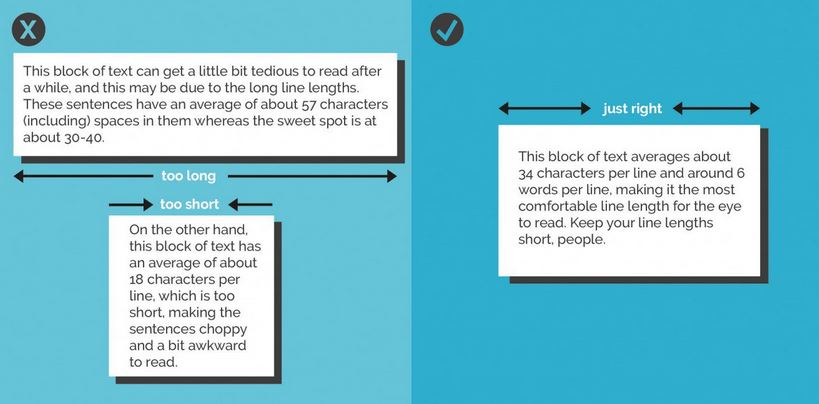
  6. Avoid orphan or widow words. Just stretch your text box a little more, or narrow it, so words aren't left on a line of their own. Canva's helpful design rules also have this to say on line length:

5) Save slides as images

You can save your PowerPoint as a PPTX to come back to the design later, but you can also save a slide as an image, or a whole bunch of slides as seperate images.

When you go to Save As, choose JPEG or PNG from the drop-down menu - it will then give you the choice of saving just the slide you're on at the moment as an image, or to create a folder into which it will save all the slides in the presentation as individual images.

Saving slides as JPEGs

Saving slides as JPEGs

And finally, while we're on the Save As function, here's a brief guide to which format to save regular presentations in depending on your situation...

The Snipping Tool is on your PC, waiting to make life a tiny bit better


If you already use the Snipping Tool, you know it's changed your life in a tiny way. You remember the days before you found it as extraordinarily wasteful. You shudder a little bit.

If you've NOT found the Snipping Tool before now: welcome. Everything up to now has been pre-Snipping Tool. You will remember this day.

The Snipping Tool allows you to draw a box around any section of your PC screen (or all of it) and then instantly saves whatever is in the box as an image. You can copy and paste that image into slides, posters, twitter, etc etc - or save it as JPG if you wish.

I know it doesn't sound like a big deal but trust me, when you prepare a lot of slides it saves AN AGE compared to taking the full print-screen then cropping. It's easier to set the margins just right than with cropping, too. So for screen-grabs in presentations, it makes things so much easier.

Here's a gif (I've never made a gif before) of the Snipping Tool doing its thing:

Look how quick it is to take the screengrab and then make it the background of the slide! Then just insert a text box, or an arrow, or a circle, and highlight the key things. Use it get images of logos, websites, databases, stills from youtube, stills from your own videos to act as thumbnails and to use in social media. It's useful in so many ways and the few seconds it saves you each time really do add up. Pin it to your taskbar forthwith.

The Snipping Tool is on all PCs already, you don't have to install it. Go to the Start Menu, type 'Snip' and there it is. It's been there all along!