How to

A UX Intern writes... Emma Gray on ethnography

This is the second post in a series about Embedding Ethnography at York. The introductory post is here; the next post will be on the same project as this one, but written by me and focusing on the logistics of organising the whole thing, rather than undertaking the ethnography.

This is Part 2, written by Emma Gray, who was our first UX Intern. At the time of her work with us she was a 2nd year undergraduate at another institution. She did an absolutely brilliant job here, and we learned a lot through her work - about our students but also about ethnography itself. Here's her take on the project. It's a great intro to what we think of at York as the Big Five ethnographic techniques in libraries. There are plenty more, but so far we've focused on these ones, in various combinations, across all our UX work.


UX TECHNIQUES IN A LIBRARY SETTING – INTERNSHIP REFLECTION

In August 2015, I began an intern project looking into how several ethnographic UX techniques can be applied to a library setting and used to investigate possible improvements of the library user’s experience in the University of York library. As the project took place outside of term time, there was a focus on the experience of postgraduate students, who were still using the library over the summer break. The techniques covered over the internship include cognitive mapping, love/break-up letters, interviews, behavioural observation and touchstone tours.

BEHAVIOURAL OBSERVATION

Behavioural mapping is the first technique that I tried out at the beginning of the project. Being unfamiliar with the library before the project began, it was a valuable experience to observe how students behaviour in different spaces in the library. Firstly, I made a grid to record observations over the six week period in different locations within the library, increasingly concentrating on the more busy areas. Using the AEIOU framework, I recorded action (how the students are working in the space), environments (noting atmosphere, for example noise levels), objects (which services are used, e.g. technology and printed resources) and finally users (it is useful to note who is using the space, be it students, staff or external users). Secondly, it was also useful to record pathway maps using coloured diagrams of how individual students move in the space. In the York University library, it was particularly relevant to record pathways in the entrance foyer because the result show which building of the library students head when they enter.
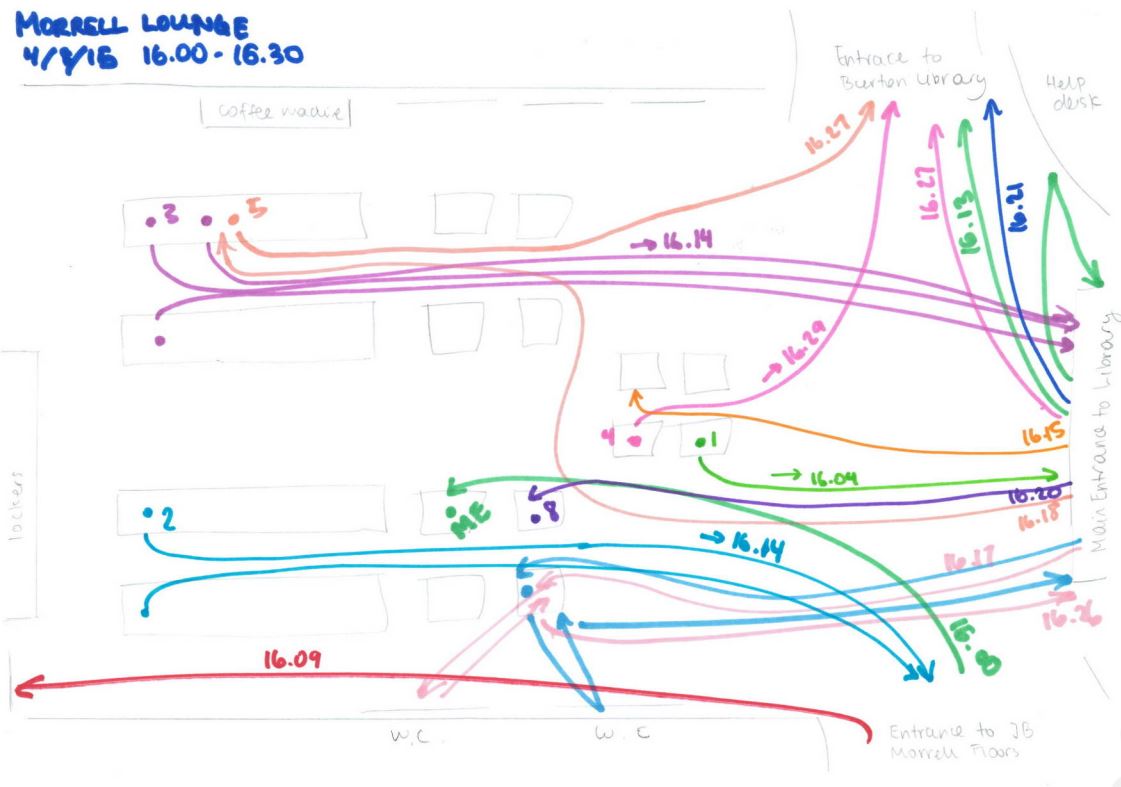
An example of one of Emma's pathway maps

An example of one of Emma's pathway maps

COGNITIVE MAPS

Participants were given six minutes to draw a map of the library, and I asked participants to change the colour of their pen every two minutes so that it could be easily remembered in which order things were drawn. It was a good starting activity because it allowed students to think about how they use the library and its services as whole. This visual representation of the spaces seems to also get the students thinking about how they use the library because I asked them more detailed questions during the interview.

The idea is that students would instinctively begin by drawing areas of the library they area most familiar with. However, I found that most participants started drawing the entrance in detail, maybe because the layout of the library as a whole is quite complex. I therefore encouraged participants to begin by drawing the area of the library they are most familiar with and use the most. This gave stronger results because it showed which objects and areas are most used.
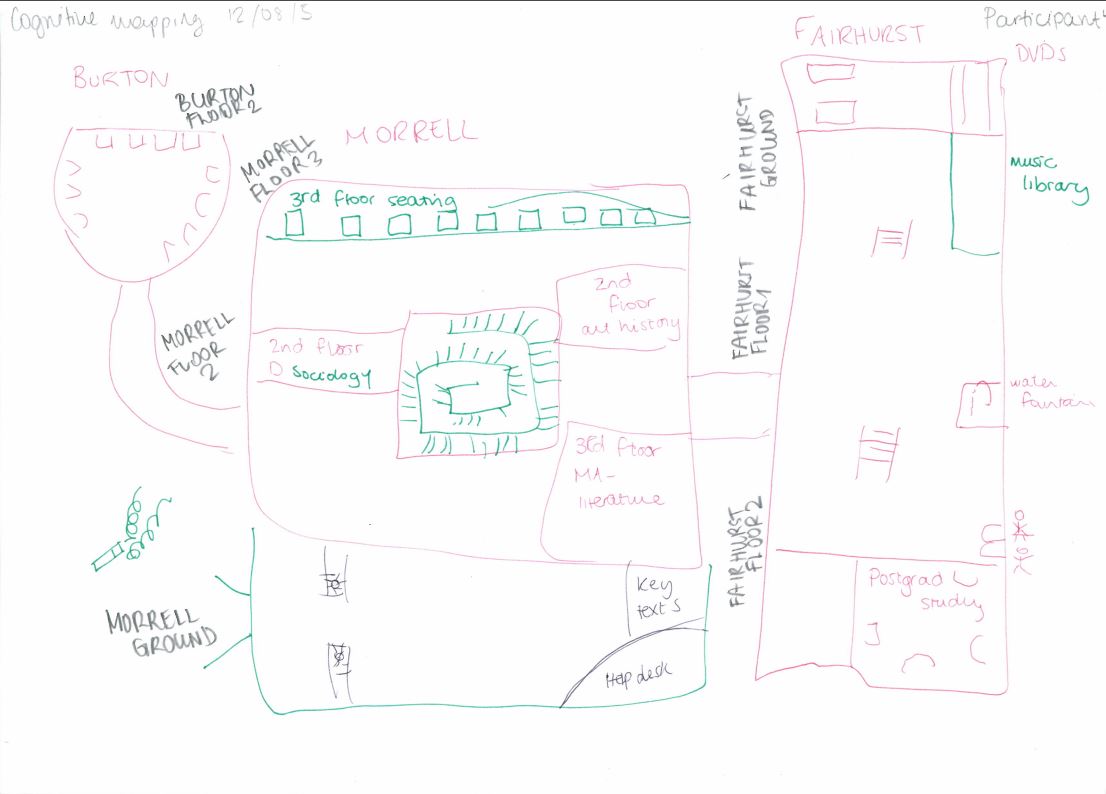
A Cognitive Map drawn by one of the participants of the study.

A Cognitive Map drawn by one of the participants of the study.

In order to process the results of these maps, I divided the library into each floor of each building, and for each noted number of occurrences on the maps, its identification index which reflects the percentage of time is occurs (number of occurrences /number of participants), its representative index (number of occurrences / times category is drawn), and its temporal index (3 points for first pen colour, 2 points for the second and 1 point for the third). This process was then repeated for each individual object that is drawn on the maps, which for example included desks, computer areas and other library services. The advantage of this technique is that is gives a visual representation of how the students view the library, and it can also yield quantitative data. However, it is also a very time consuming technique, so the practicality of the data very much depends on the size of the library.
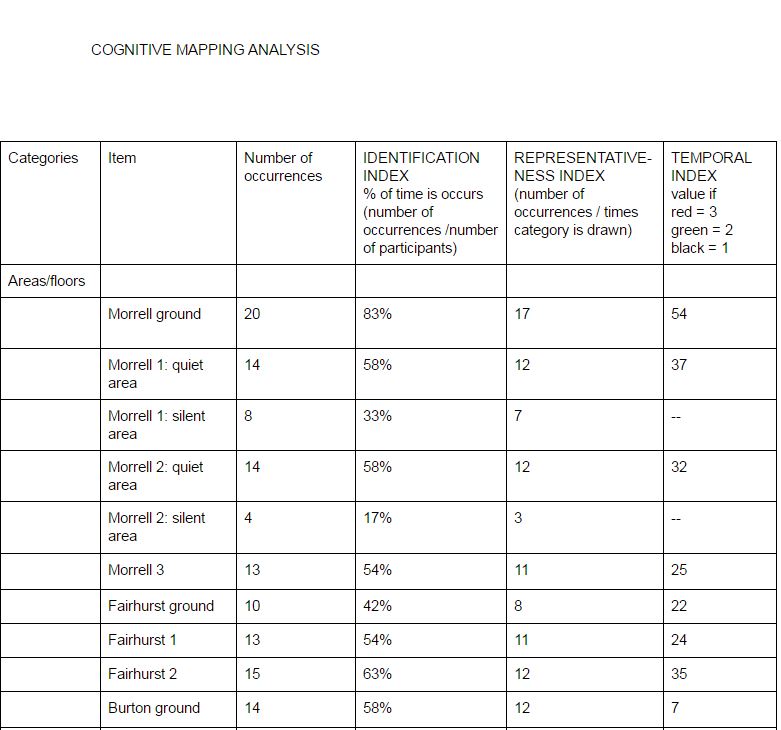
A screengrab of part of Emma's coding of Cognitive Maps

A screengrab of part of Emma's coding of Cognitive Maps

INTERVIEWS

I began the interview by asking the participants to describe and elaborate on their cognitive maps. Many participants elaborated on how they use certain spaces, which provided useful context for the cognitive map. I also asked participants to explain the process of how they use library services when working through an assignment. I asked general questions about the students’ experience with various services that the library provides, and encouraged to give their opinion on how their experience could be improved.

I found that being an intern and a student myself was invaluable to the interview process because the students did not shy away from being honest about their experience and more comfortable being critical than they might have been with a member of staff. Following the advice from Bernard’s ‘Research Methods in Anthropology: Qualitative and Quantitative Approaches’, I occasionally paused after a short answer was given, and often the participant would continue talking in more detail after a few moments, which kept the conversation flowing.

The major advantage of interviews is the breadth of information they yield, especially because things that individuals bring up can be elaborated upon and questions can also be adapted for future participants (e.g. finding out whether students had similar experiences with aspects of the library mentioned by other participants). Having a few standard open-ended questions is key, but participants seem to much more at ease if the interview flows like a conversation, rather than reading off a list of questions.

The only downside is that transcribing long interviews (they usually lasted between ten and fifteen minutes) takes a long time, but is definitely more valuable than making notes at the time because you are free to focus on what the participant is saying.

LOVE / BREAK-UP LETTER

Participants were asked to write either a love or break-up letter to a specific service that the library offers, so that the students can more emotively express how they feel about this service. I encouraged students to write about they feel (either negatively or positively) passionate about.

The participants were given a maximum of ten minutes to complete their letter. I definitely found this technique the most interesting because many participants wrote very imaginative, emotive letters that gave real insight into how library services and staff are perceived, and how this affects their daily university life. I did not find that this technique had any real disadvantages, only that some students preferred to write a wish list on what could be changed in the library. This also gave insightful information, but often did not show the reasoning behind these requests.  

An example of a usefully insightful Break-up Letter... Participants write these by hand but Emma wrote them up for ease of searching / reading. 

An example of a usefully insightful Break-up Letter... Participants write these by hand but Emma wrote them up for ease of searching / reading. 

And for balance, here's a Love Letter...

And for balance, here's a Love Letter...

TOUCHSTONE TOURS

For touchstone tours, I asked participants to give me a guide of the library. I voice recorded the tours to be transcribed later, so that every detail of the tour could be recorded.

Before the tour began, I usually encouraged participants to give as much detail as they could about how they use the services and different spaces, and also to point out their favourite space in the library. During the tour, I tried not to interrupt the participants or ask any more questions so that they could speak freely. Occasionally, I asked questions after the tour was over if any clarification was needed, or to enquire why the tour hadn’t included a certain area of the library.

The touchstone tours were interesting because the participants were very free to take me wherever they want, and point out anything they want, meaning that the participants brought some things up which I hadn’t thought to mention in the interview. It is notable that the quality of the tour heavily depended on how comfortable the participants were speaking out loud and narrative as we went along.

CONCLUSION

All of the techniques describe above have their own advantages and disadvantages, but they also each contributed to a more multi-faceted insight into how each participant engages with library services. I found the cognitive mapping the most interesting technique because I think it was the most unfamiliar to the participants and therefore got them thinking about how they use the library in a new way. As was the case in this particular library, it also highlights any areas that are being underused. Conclusively, having an intern collect UX data for a university library is a great idea, because the students are definitely more comfortable making their feelings known than they would be with a staff member.
Embedding ethnography Part 1: long term UX in the Library

The User Experience in Libraries Conference is looming next week, and I've got a series of UX related posts (not all by me!) lined up for this blog. (Read post 2, A UX Intern writes... here.) Apart from writing about last year's conference, and creating the UX Resource List for anyone interested in an introduction to the area, I've not really talked much about ethnography on here, but I've been doing a lot.

Apparently someone recently asked Andy Priestner (UXLibs Chair) what 'the next fad in libraries will be after UX'! To me this totally miscasts what User Experience in libraries is all about. Purely and simply, UX is an umbrella term for a suite of methods to help us understand our uses better, and design changes to that service so it works more successfully for those users. That is not a new or faddish need. It isn't going to go away. The methods may be new to libraries (in the UK at least; they're more established in the US and Scandanavia particularly) but there is a growing community of libraries and librarians getting amazing understanding and insight with them, so we'll continue to use them. More and more info pro jobs are starting to get elements of UX in the job description. This stuff is here to stay not because it is fashionable, but because it works.

The posts over the next two or three weeks will cover three projects undertaken at the University of York, including guest posts from UX Interns we had for two of them. The first covered Postgraduate students, the second covered specifically just Postgraduate Researchers, and the third, still ongoing at the time of writing, focused on academics. All of them have been fascinating and rewarding, but by no means plain sailing...

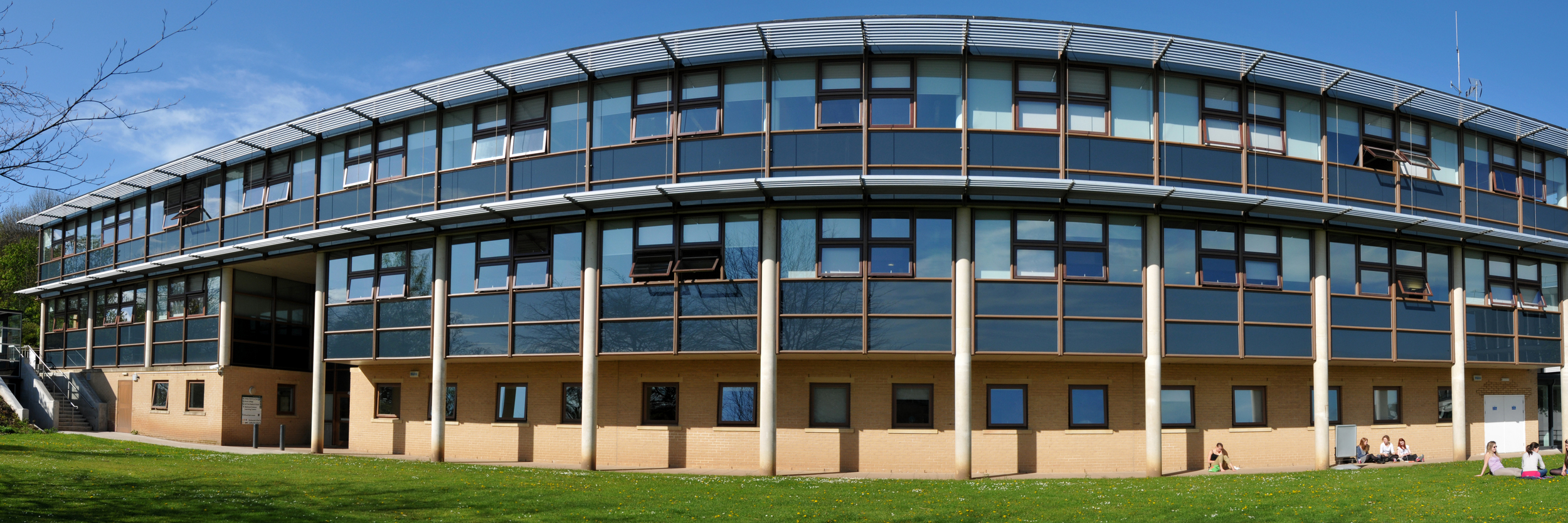
The Fairhurst Building at the University of York, the HQ for all our UX projects. Photo used by permission, copyright of Paul Shields.

The Fairhurst Building at the University of York, the HQ for all our UX projects. Photo used by permission, copyright of Paul Shields.

UX at York: project overviews

I'll go into more detail in subsequent posts but here's an introduction to each project.

  • Project 1: Summer UX. This was a 2 month project with the aim of building a UX Toolkit - essentially understanding the UX techniques and methodologies in a York context, see how they worked, what we could learn etc. We had an intern working part-time during the 2 months, and we used 5 ethnographic techniques across a total of 25 participants. These were all Postgraduates, both PGRs and PGTs, from a mix of disciplines.
  • Project 2: PGR-UX. The second project also featured an intern, and was more focused - we spoke to fewer people, and the participants were all Research PGs. We targeted people from specific departments, and really only used three of the ethnographic techniques.
  • Project 3: Understanding Academics. This project is absolutely huge and still on-going. It involves everyone in Academic Liaison, will last several months, and involves academics from every single Department at York. We have spoken to around 100 people in total for this, and used two ethnographic techniques. The analysis has just started.

Embedding ethnography

The key to our approach at York has been to try and integrate ethnography into our regular routine right from the start, rather than having a little UX silo where UX projects happen in isolation. We now try and utilise UX wherever appropriate in the Library, although quite honestly we've been better at embedding the ethnography than we have at the design-thinking / human-centred design aspect that completes (or continues) the UX-cycle, but that side of things is coming. We aim to consistently supplement our existing data collection methods with a nuanced UX approach, and because of the amount of work involved in ethnography and the sheer amount of time it takes, we target specific groups and areas we want to know more about and use ethnographic techniques with them. Each time we do, we learn more about that group of users then we've ever known about a group of users before. It's fantastic.

The five of us who attended UXLibs set ourselves up as available to be brought in on any wider projects happening in the library, to provide advice and guidance of if, where and how ethnography might be useful. So although the first project listed above, Summer UX, was primarily a way to try out UX in a York context, the subsequent two have been existing projects which have been deemed suitable for ethnographic input, and we've been brought in to advise on how best to go about it.

Next time will be the first guest post in a very long while on this blog - our first ever UX Intern, Emma Grey, has written about her experiences working with us when completely new to both libraries and User Experience, and the five ethnographic techniques she employed, including how she refined them as she went along. 


Header pic by the Library Photographer at the University of York, Paul Shields. Used with permission.


So you want to make in infographic? 4 useful options


We're putting together a guide to various infographic software for our students, so I've had cause to play around with a few. I find a lot of tools recomended on the web just don't quite work for educational stuff (or, indeed, library stuff); they're just too much style and not enough substance.

Also, all the articles about infographic tools are entitled things like '61 GREAT INFOGRAPHIC PACKAGES!' which always baffles me somewhat. Maybe it's the information professional in me, but I think if you're going to write something recommending a set of tools, you should at least narrow the number down to a recommended few...

So what are the most effective tools for creating meaningful infographics?

1) Great for stats and figures: Piktochart

I really like Piktochart. It's the tool we use most often at work. My colleagues have used the templates to create infographics, for example this one has been used to explain library processes to users in a way that is engaging and easy to understand:

An example of a Piktochart template

An example of a Piktochart template

It's simple to take something like the template above and change the images (there's a huge built in library of icons, or you can use your own) and the colours etc to suit whatever you wish to express. Piktochart also has seperate templates for Reports, which are nice.

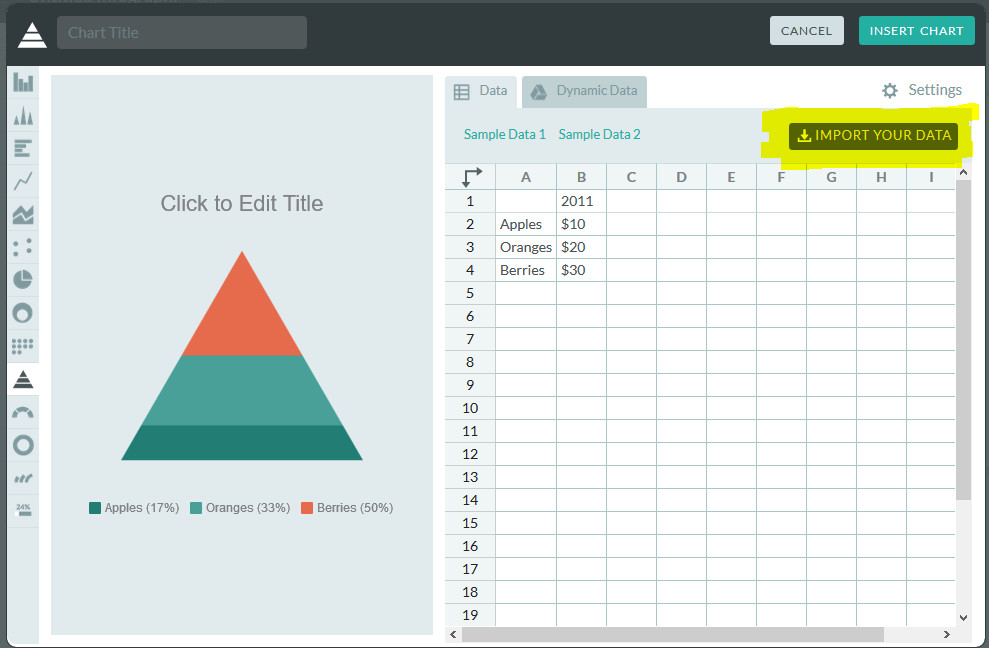
For me, though, the way it integrates very easily with your own data from Excel or Google Sheets, which you can import from a .CSV file, is the best thing about this tool. So it takes what you already have and makes it visually appealing, which helps prevent the all-style-no-substance issue that afflicts a lot of infographics.

You can import your own data

You can import your own data

Although Piktochart does infographics, reports, and some really nice data visualisation with maps, I've mostly used it to create individual charts which I've then exported for use in other things, like Action Plan documents, or presentations. In the example below, all the graphs etc and visualisations are from Piktochart, and I'm by no means an expert user so this is just scratching the surface of what it can do.

Piktochart is free, but also has reasonably priced educational packages, one of which we have at York, that allow you a few more options and some more features. 

2) Good for flexibility: Canva

Canva does a lot more besides infographics. It's really good for creating images perfectly sized for social media, and they put genuinely useful tips on their design school blog.

At York we've used Canva for creating one page guides to things like Google Scholar, or JSTOR, in order to embed them in the VLE, blogs, etc. Canva is simple to use and there are a lot of nice built in fonts and images which can make otherwise not-overly-exciting subjects a bit more engaging for users.

You can use Canva for free, which is what we do. It tries to tempt you in with paid for images and templates, but you can also import your own images so there's no requirement to pay for theirs if you don't want to.

Here's the interface and an example of a free to use template you can build on:

The Canva interface

The Canva interface

I'd recommend playing around with Canva if you've not used it, because it has so many potential applications. The trick, really, is being able to sort through the paid stuff to find the free stuff, and being able to sort through the superficial 'this is probably great if you're the web designer for an artisan baker in Portland' templates to find the 'I can actually see this working in my world' examples...

3) Good for interactivity: Infogram

Infogram is particularly good for creating graphics you want to embed online, because they can be responsive and interactive depending on what you do with them. It's basically about hovering over different bits of the graphics, but it does allow you to focus on certain parts of the data more easily than a static chart allows. See the example below:

Other pluses with Infogram include its ability to import data from a really impressive variety of sources. Downsides include the free version being fairly stripped back of features, and even the cheaper paid for version being out of financial reach for most non-profits.

4) Good for surprising you with its potential for making infographics: PowerPoint!

The much maligned PowerPoint is actually a very good tool which is often deployed spectacularly badly by its users. It's more flexible people than people realise (especially the two most recent iterations, 2013 + 2016), and that makes it surprisingly good for infographics. The main reason it's good is because you can take something - a chart or graph from excel, words written in interesting fonts, icons, images - and put it on a slide, and it just stays where you put it. Then you can layer more and more stuff on, and easily move it around - unlike Word which is a nightmare for that sort of thing, and a bit like Photoshop, but without the need for a 2 year learning curve...

The keys to making an infographic are firstly to edit your slide to the right dimensions: go into the Design tab, choose Page setup and then choose, for example, A3, Portrait. Your single slide is your infographic. Secondly, use images from somewhere like freeimages.com, or icons from iconfinder.com, to make your content interesting (along side graphs and charts you can copy and paste in from Excel). Thirdly, use a non-standard font - download one from fontsquirrel.com - as typography makes a huge difference.

Bonus option: Visual.ly for Google Analytics Infographics

If you have a website which uses Google Analytics to track statistics, but don't want to be logging in to check your stats all the time, visual.ly provide a useful free service. You log in with your Google ID, give them your analytics code, and they send you a weekly infographic which tells you how you've done in all the key areas. When you have a good week it's a nice friendly blue, if you have a not-so-good week it's red for danger...

Sign up for yours at visual.ly, here. Everything else visual.ly does is a paid for service, but the Analytics infographics are free.


Do you have any recommendations I should add to this list? Leave me a comment below.


How to use Instagram as an easy photo editor but NOT necessarily a social network!


As well as being a massively popular social network, Instagram is a brilliant photo editing tool - it's quick, intuitive and easy to transform images. But you can't save the photos to your phone unless you post them online, and sometimes you might want to edit a photo and not share it with the world on social media.

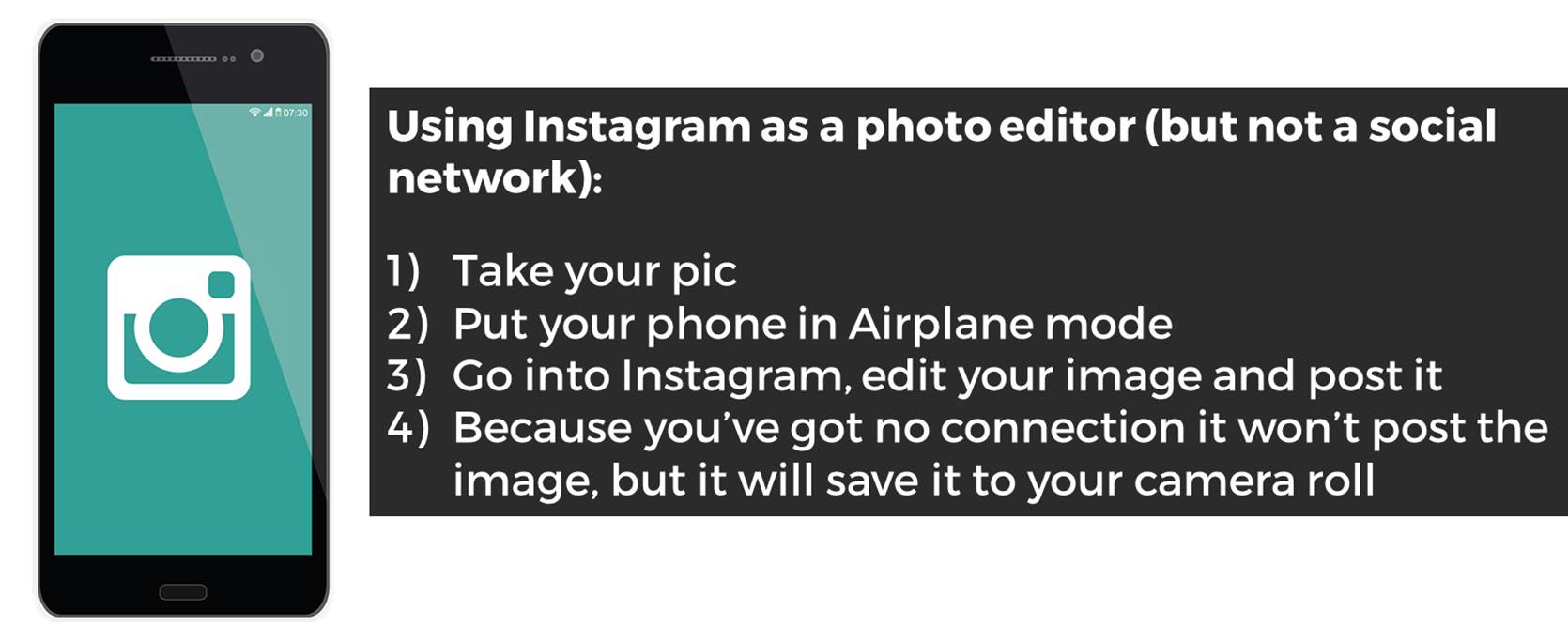
So how do you do this? The tl;dr version of this post:

How to use Instagram as a photo editor

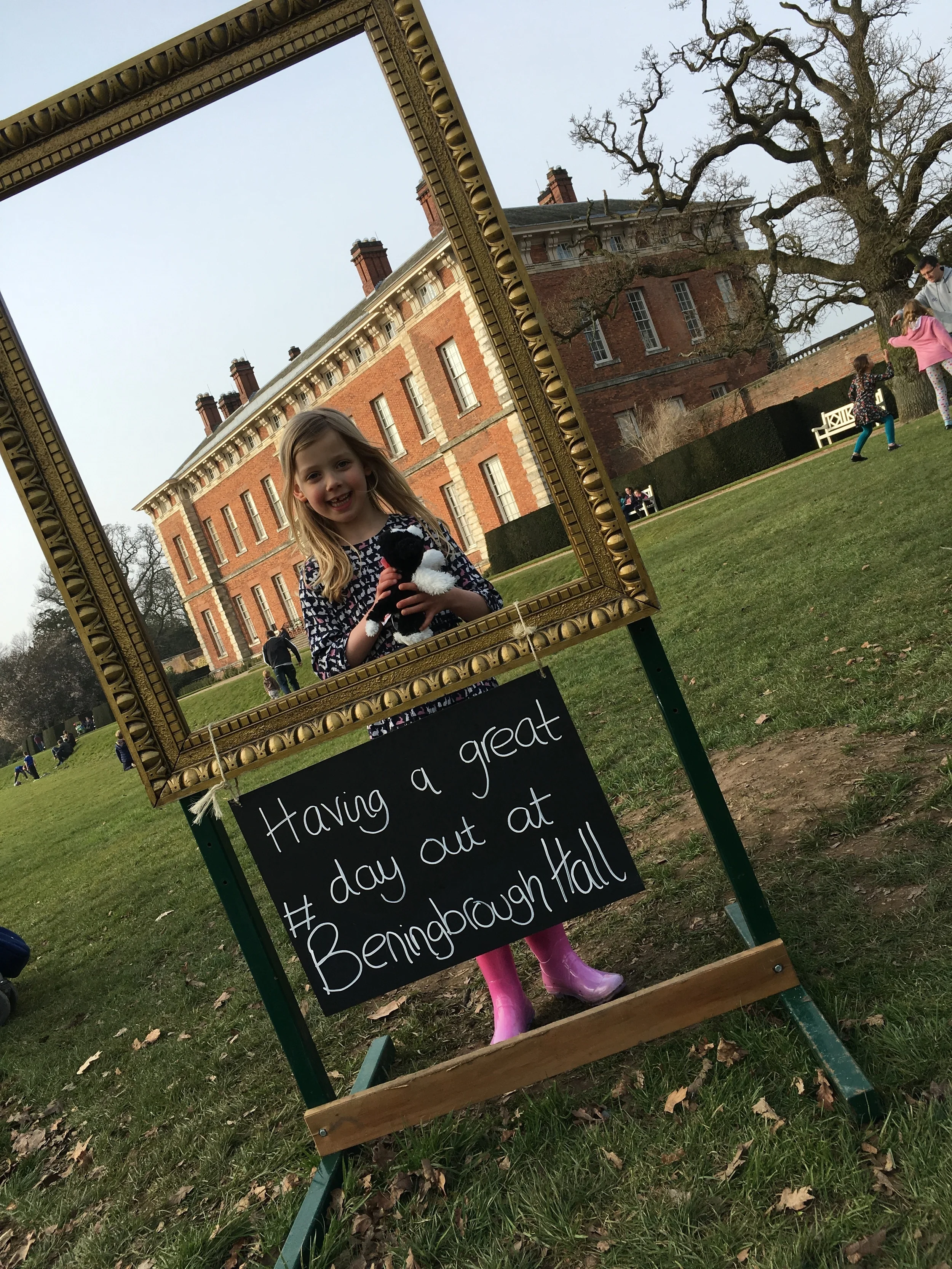
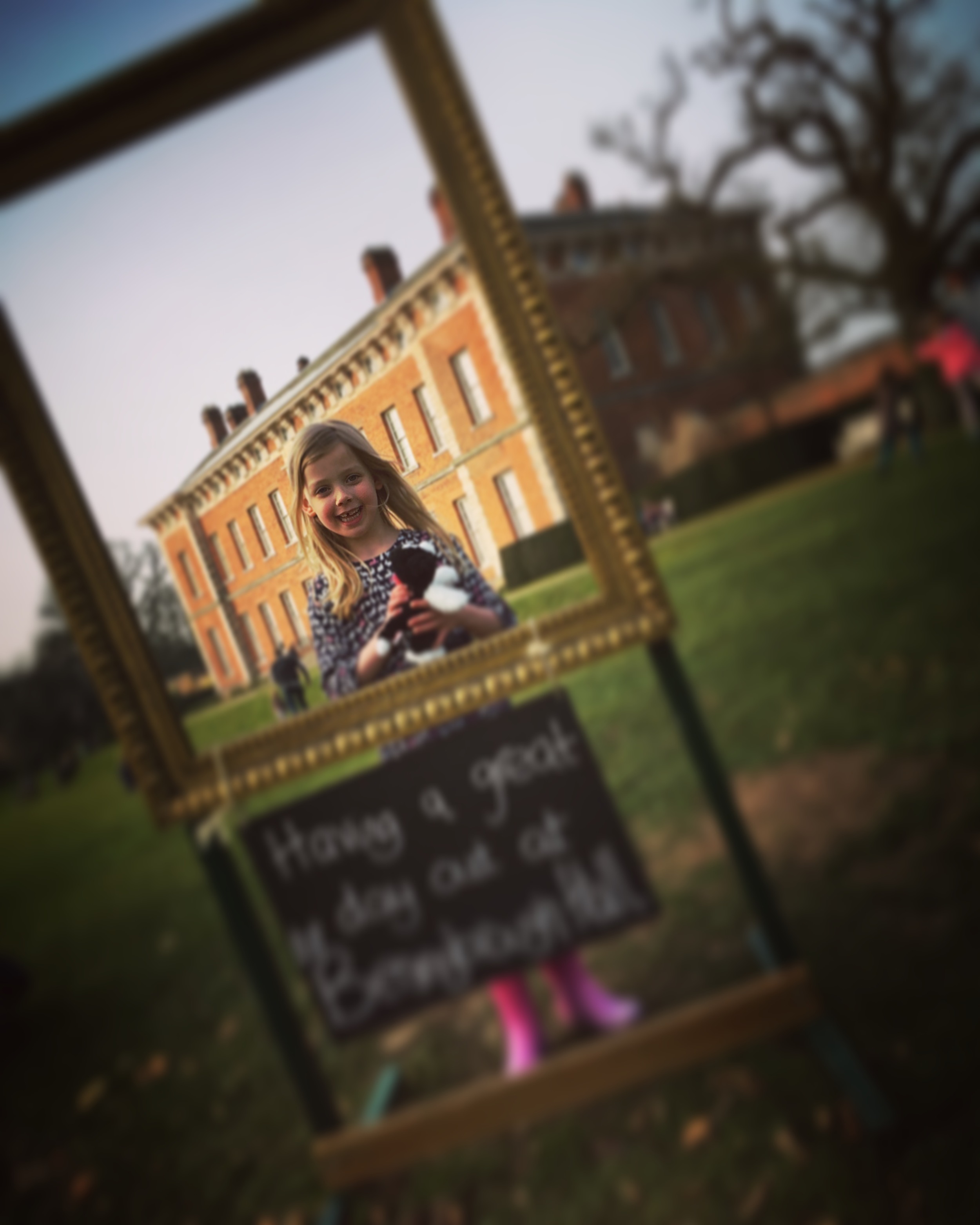
This is great for family stuff (and professional stuff, more on which below). I've become a little obsessed with manipulating photos so that the most important part of the image is clearly highlighted in some way. For example this weekend I took a picture of my daughter and wanted to use the filters Instagram provides and also the tilt-shift function. I love tilt-shift - it makes part of your image slightly out of focus, drawing the eye to the in-focus part you define. But I didn't want to post a picture of my kids on Instagram because I use that purely for drumming related shenanigans - so I took the picture and went into Instagram, edited it, and posted in Airplane Mode so it didn't actually get as far as the internet, but DID save to my camera roll. I really like the way the bits in the picture frame are in focus, but the resit isn't.

The original picture

The original picture

The tilt-shifted, Instagram filtered one

The tilt-shifted, Instagram filtered one

5 steps to use Instagram professionally for photo editing

For professional projects this is potentially very useful, especially if you can't find a free stock image that suits your requirements. Let's say you're making a slide for a presentation and you need to talk about Google. You don't want to pay for a photo, and you can't find a suitable Google-related pic which has space to write on, without having to pay.

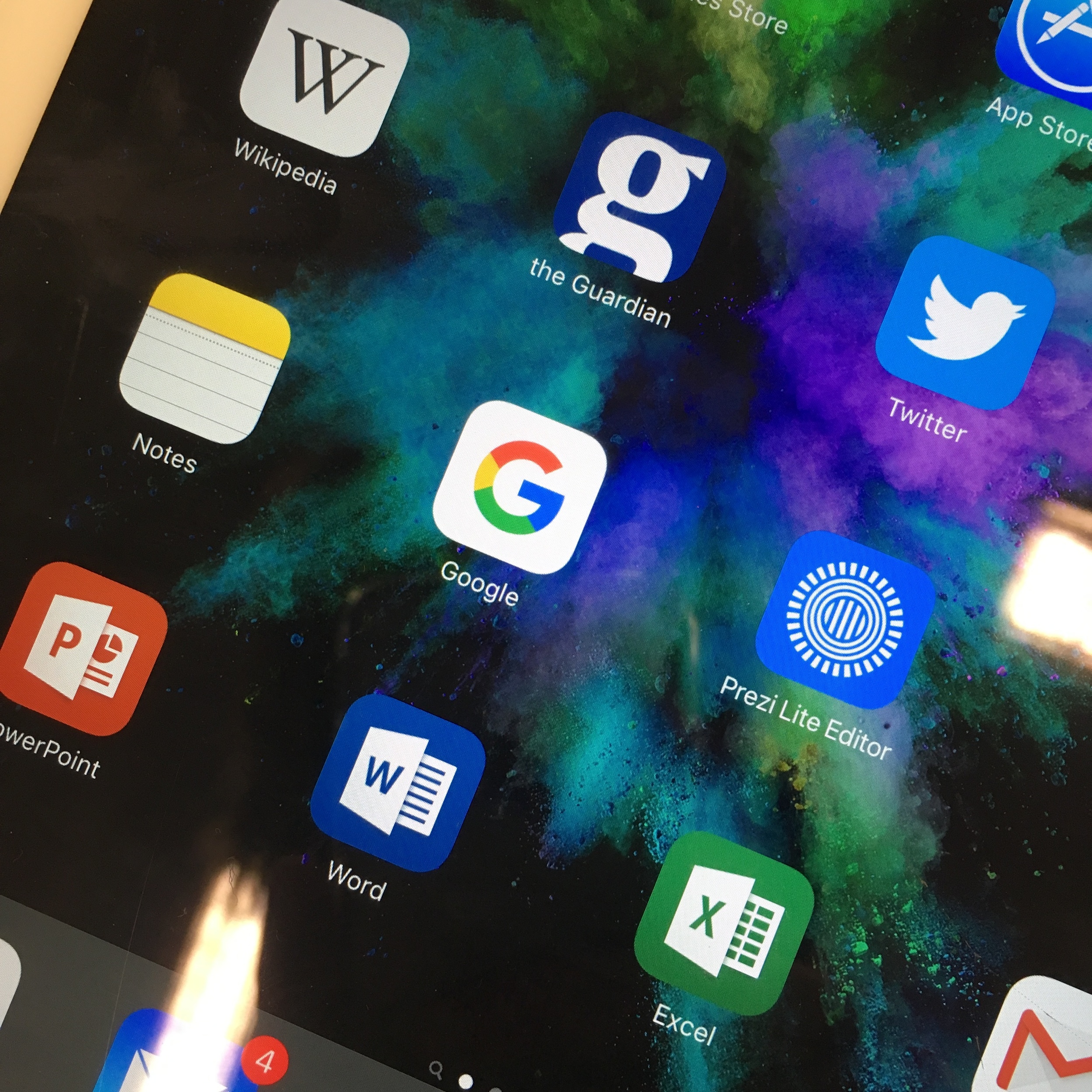
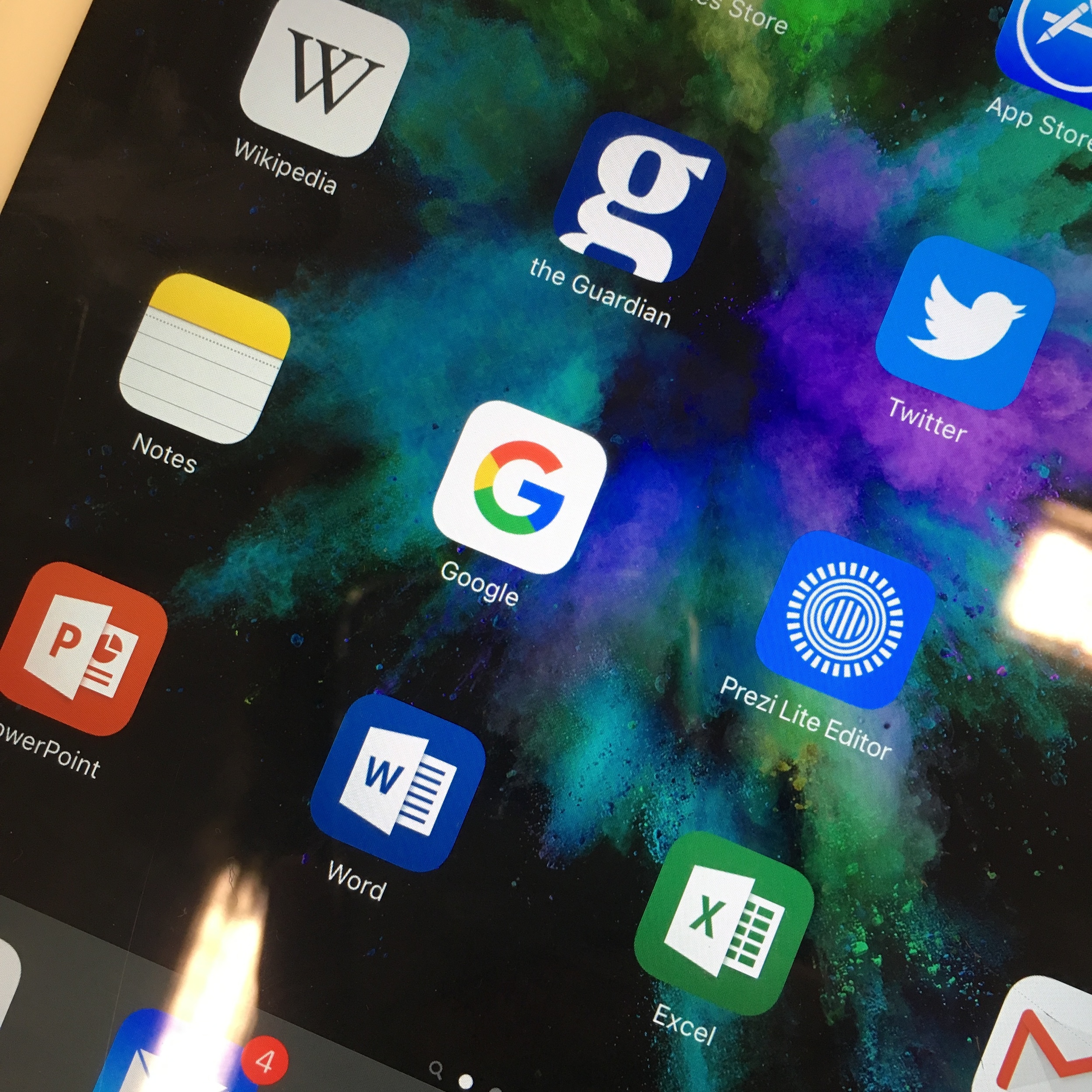
STEP 1: Use your phone to take a picture of the Google app icon on a tablet. (Keep in mind you don't have to take a photo - you could screengrab your phone or tablet if you want to get an image of an app or website. I've gone with a photo in this example to get the angle.)

STEP 1: Use your phone to take a picture of the Google app icon on a tablet

STEP 2: Apply a filter. (I ended up choosing X-PRO II)

STEP 3: Use the Radial Tilt-Shift to effectively blur everything except the Google icon

STEP 4: If you don't post it to Instagram it won't save to your Camara Roll. So go into Airplane Mode then post it - you'll see the 'Failed' message and you can press the X to dismiss it. Instagram will now forget all about the image and not attempt to repost it when you have connectivity - but you'll still have the edited pic saved to your phone.

STEP 4: If you don't post it to Instagram it won't save to your Camara Roll. So go into Airplane Mode then post it - you'll see the 'Failed' message and you can press the X to dismiss it. Instagram will now forget all about the image and not attempt…

STEP 5: Your finished photo! The eye is drawn to the Google icon, and the photo is darkened and blurred so you can potentially add easily readable white text to your image as part of a slide. Email it to yourself and it's ready to use in your slide.

STEP 5: Your finished photo! The eye is drawn to the Google icon, and the photo is darkened and blurred so you can potentially add easily readable white text to your image as part of a slide.

Finally here are the two photos side by side so you can see the difference.

Original photo

Original photo

Edited version

Edited version

You can sign up to Instagram and never publically post a picture if you don't want to! If you make creative use of this technique let me know in a comment.

An Alternative to Seth Godin's 5 Rules to create amazing PowerPoint Presentations


Seth Godin is a very influential man, and his views on PowerPoint carry a lot of weight. He wrote a famous post a while back (1.5k Facebook shares, a gazillion tweets about it etc) on creating amazing presentations - you can read it here. I agree with lots of it completely, but I'm not totally on board with the five rules at the end.

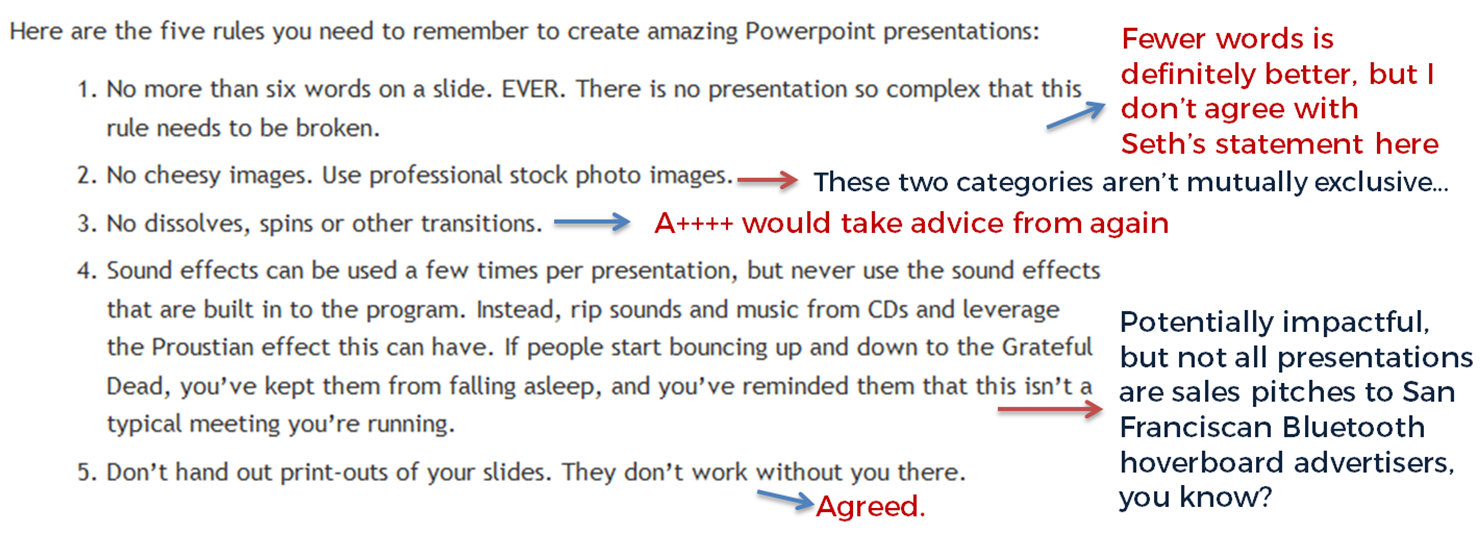
My take on Seth's rules

My take on Seth's rules

No more than six words on a slide. EVER. There is no presentation so complex that this rule needs to be broken. To me this seems too arbitrary. Fewer words is without doubt better than more words when it comes to slides - they're presentation tools not written documents. But six? As the maximum ever? Unless that's based on research that shows seven or more words reduces the effectiveness of your PowerPoint, why limit yourself in such an extreme way? I'd say one or two sentences to ensure brevity but allow yourself a little flexibility in conveying meaning and nuance.

No cheesy images. Use professional stock photo images. First of all there are plenty of cheesy professional stock photos! Authenticity is key. The trick is to find images which look like the camera has happened upon a real scene - lots of pro stock images show impossibly perfect people laughing flirtatiously over a blank iPad, I mean come on. I find Pixabay and Unsplash have enough for most presentations I make, plus someone introduced me to Pexels the other day which looks good, and they're all free - both of copyright and financial cost. The professional stock photo sites cost a fortune to use - why use them when so many great (legal) images can be found for free?

No dissolves, spins or other transitions. Yup. No argument here. If it's extraneous to your story, all you're doing is reducing the impact of your message.

Sound effects can be used a few times per presentation, but never use the sound effects that are built in to the program. Instead, rip sounds and music from CDs and leverage the Proustian effect this can have. If people start bouncing up and down to the Grateful Dead, you’ve kept them from falling asleep, and you’ve reminded them that this isn’t a typical meeting you’re running. I like the idea about using music etc but it really needs a certain type of high energy presentation performance to pull this off. It's not for everybody (I couldn't do it). It's hard to think of a rule around sound that is absolute; it all depends on your audience, and some of them way think the use of music is a little distracting, whatever your music taste... From what I understand about the Proustian effect it's a very personal thing; I'm not sure a presenter could expect to cause or induce it for a room full of people. 

Don’t hand out print-outs of your slides. They don’t work without you there. I agree with this. But I wouldn't put it in my top 5...

Header pic is a CC-BY image by Betsyweber - clcik to view original on Flickr.

Header pic is a CC-BY image by Betsyweber - clcik to view original on Flickr.


My own top 5 rules for creating effective PowerPoint slides

So what would I put in my top 5 rules for creating amazing PowerPoint presentations? I can answer that question because the intro to my full-day Presentation Skills training is built around five golden rules, based on existing research into what makes for an effective presentations - and that's the aim here, to build something which works. 'Amazing' is no good on its own; you need people to remember your key messages, not just how great a presenter you were.

Here we go:

  1. Keep it simple. Slides don't need to be flash - get rid of anything that doesn't tell your specific story, and leave behind something which supports and reinforces what you're saying out loud, and prompts you as to what to say next.
  2. No more bullets. Bullet points ruin slides. They're fine for documents, but you're not making a document in PowerPoint. As well as being symptomatic of a general Death By PowerPoint malaise, they make people less likely to agree with, understand and remember your presentation. Oh and they like you less when you use them. That's enough of a reason to never use them, surely?
  3. Make one point per slide. Make your point, allow your audience to digest it, then move on together in sync with them. Several points on a slide inevitably result in your audience moving at a different pace to you, because they can only listen and read for a few short seconds. Why be in conflict with your presentation materials when you don't have to? Give each key message room to breathe.
  4. Big fresh fonts. Font size 24 is the absolute minimum you should ever use in slides. If you need more you're trying to fit too much on one slide. Either ditch some text or cascade it across two slides. Non-standard fonts (which is to say, fonts which don't appear in the Office Suite) can, if chosen carefully, increase the impact of your presentation. Typography is underrated.
  5. More images, less text. Too much text stops slides working. Relevant images help people learn. Make the most of your opportunity with each new PowerPoint you make!